
The first time a machinist rejected one of my parts, I didn’t understand what the issue was. He told me it was “impossible to machine efficiently,” but I had no idea why.
I wanted to speak his language, even just enough to make better design choices.
This article is written exactly for that purpose. It’s for designers who care about both form and function, and who want to create parts that are ready for production.
You’ll find 8 simple CNC milling programming examples here, with clear explanations. They’ll help you see how toolpaths, features, and tolerances show up in real code.
So let’s dive in!
Quick Comparison Chart
Before selecting a CNC operation, it’s essential to understand how each one differs in purpose, tool use, motion control, and programming complexity. This comparison table outlines the key attributes of the 8 basic milling programming examples to help you evaluate their strategic fit.
| Operation | Primary Function | Tool Type | Movement Type | Typical G-Codes | Programming Complexity | Application Examples |
| Face Milling | Smooth and level the top of raw stock | Large flat end mill | Zig-zag or linear rastering | G0, G1 | Low | Surface prep before any other operation |
| Hole Pattern Drilling | Create evenly spaced holes in a set pattern | Twist drill or center drill | Point-to-point vertical | G0, G1, G81 | Low–Moderate | Mounting plates, brackets, connector bases |
| Rectangular Pocket | Mill a square/rectangular cavity into material | Flat end mill | Layered linear passes | G0, G1 | Moderate | Enclosures, recessed bolt areas, housings |
| Circular Pocket | Create round internal pockets or cutouts | Flat end mill | Spiral or concentric arcs | G1, G2/G3, I, J | Moderate–High | Bearing seats, tubing interfaces, internal cutouts |
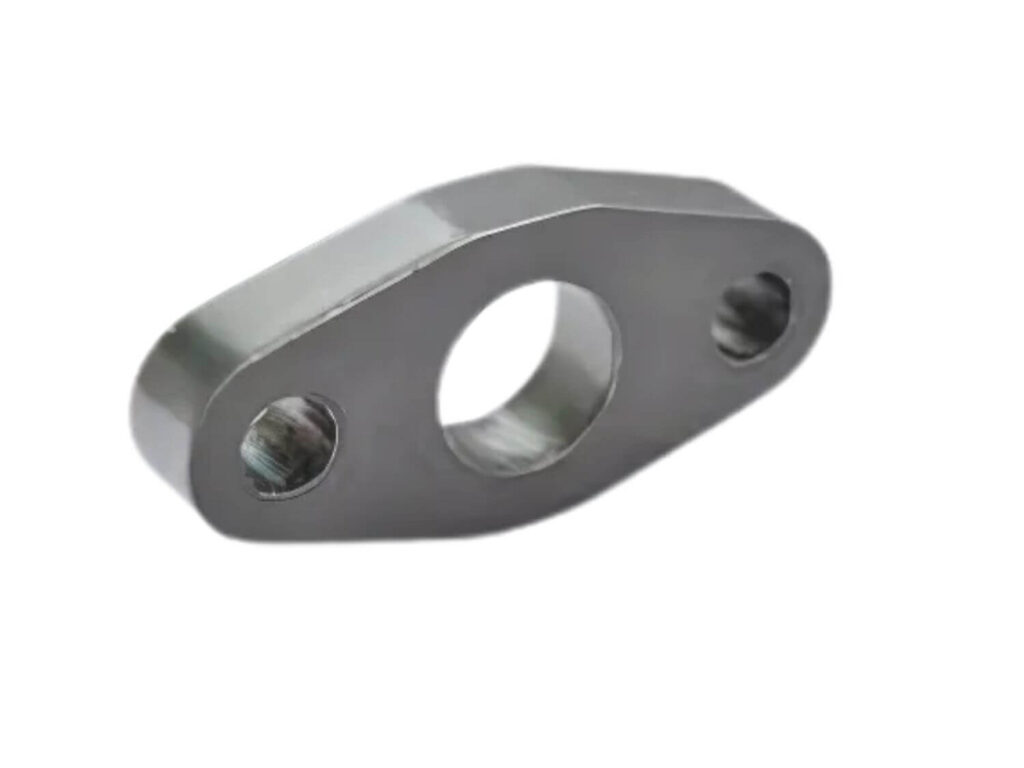
| 2D Contour Profile | Cut the external shape of the part | End mill | Perimeter following | G1, G2/G3, G41/G42 | Moderate | Final part outline, plates, brackets, shaped components |
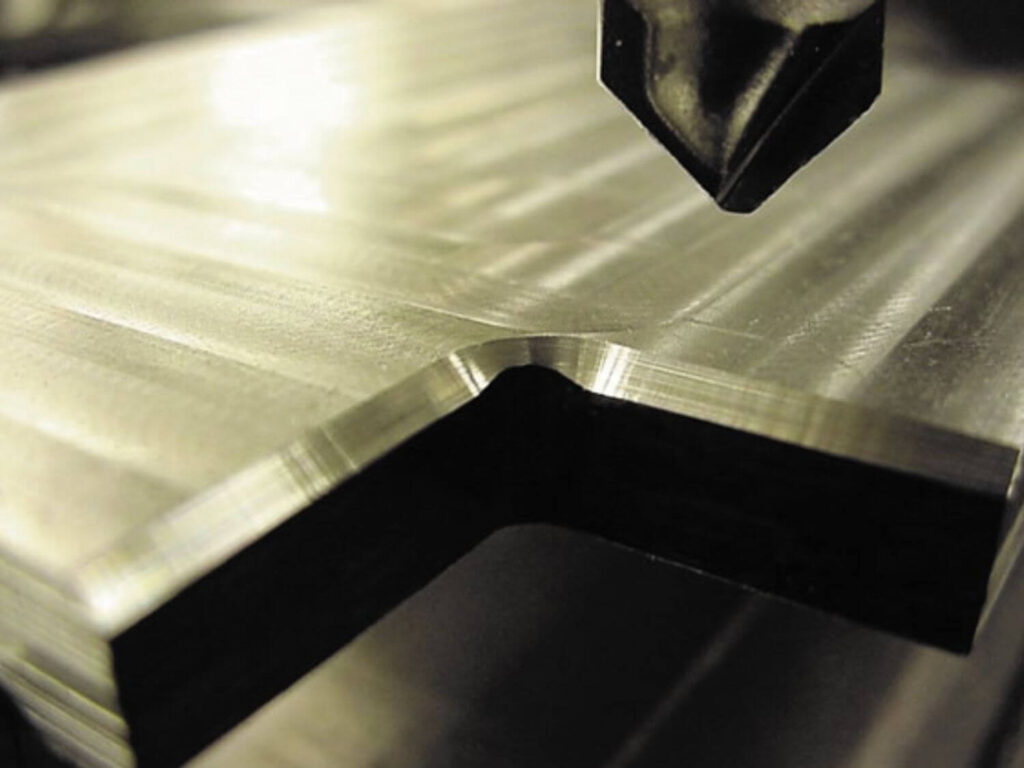
| Chamfering Edges | Remove sharp corners; add 45° bevels | Chamfer mill or countersink | Linear edge tracing | G1 | Low | Edge finishing, handling safety, assembly fitting |
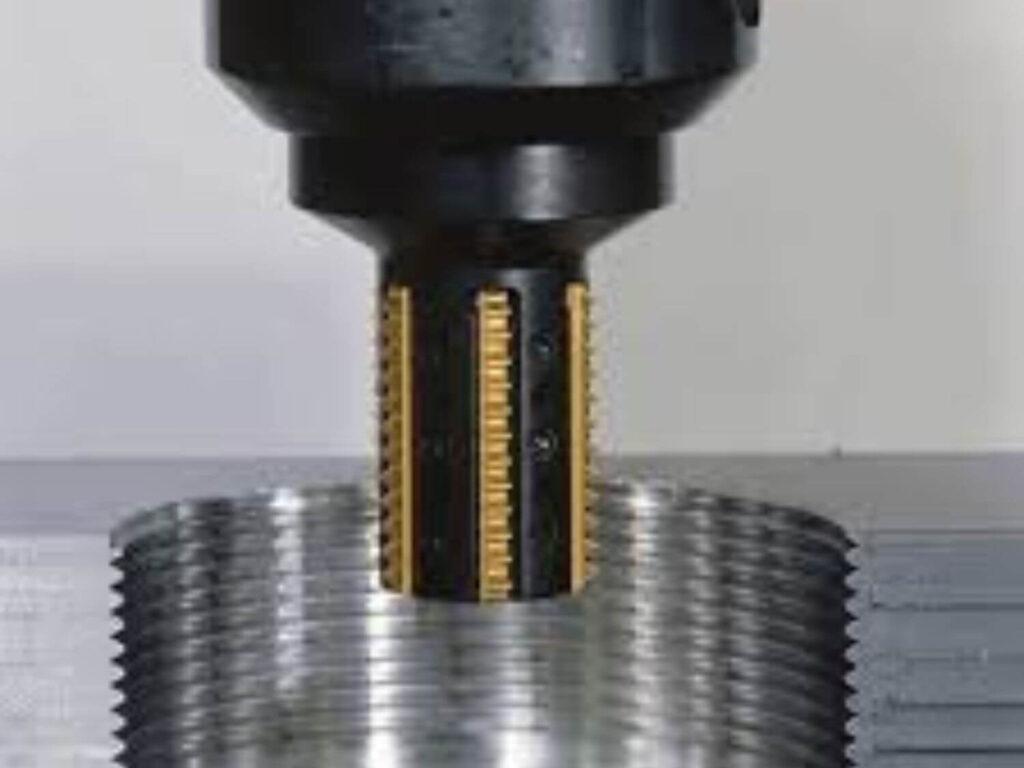
| Thread Milling | Create precise internal or external threads | Thread mill | Helical arc with Z descent | G2/G3 + Z motion | High | Deep threads, hard materials, high-precision assemblies |
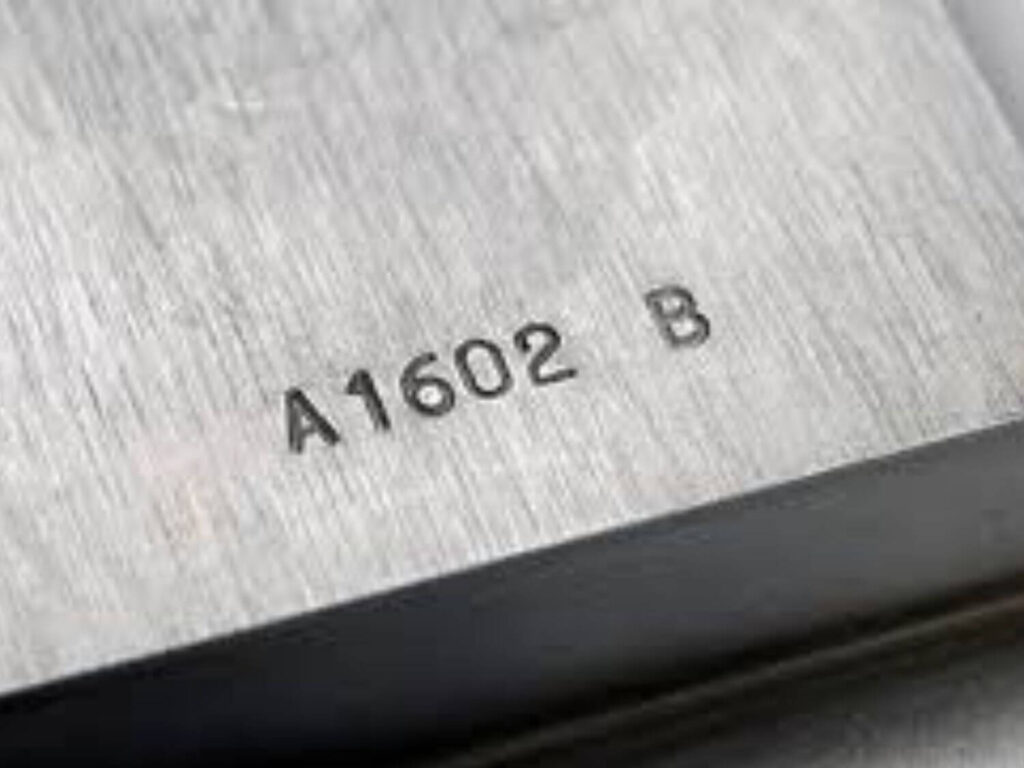
| Engraving | Mark text, logos, or serial numbers on parts | V-bit or micro end mill | Fine linear motion tracing | G1 | Moderate | Part ID, traceability, branding, compliance marking |
Each operation brings different motion logic, tooling strategy, and programming needs. By understanding these differences, you’ll be better equipped to plan workflows, quote jobs, or assess vendor capabilities with confidence and precision.
1. Facing Operation (Surface Smoothing)
I still remember the first time we ran a part without surfacing the material. The stock looked fine—until we measured. It was off by nearly half a millimeter in some spots. That slight warp? It threw off every hole, every depth, and forced us to scrap the batch. That one oversight cost us over $2,000.
That’s when I understood—face milling isn’t optional. It’s the foundation.
Goal
The goal of face milling is simple but critical: flatten the top surface of your workpiece, so the rest of your machining is accurate.
Whether you’re drilling holes, cutting pockets, or finishing an external profile, you need a true, even surface to work from. Without that, every depth setting, Z-axis move, or surface finish you plan will be inconsistent.
This is often the very first operation in CNC milling, and it sets the tone for the rest of the job.
Concepts to Know
- G0 (Rapid Move): This tells the machine to move quickly to a new position without cutting. It’s used to get the tool above the part, move between passes, or clear the material safely.
- G1 (Linear Cutting Move): G1 is the workhorse command for actual cutting. When you’re performing a face milling operation, this command moves the tool slowly across the surface to remove material.
- Feedrate (F): Feedrate controls how fast the tool moves while cutting. Too fast, and you’ll ruin the finish or break a tool. Too slow, and you’ll waste time and overheat the part. In face milling, a moderate feedrate with a wide tool is best for speed and surface quality.
- Spindle Speed (S): While not exclusive to facing, it’s important. Use higher speeds for aluminum or plastics, and slower for tougher materials like steel. Facing is often done with a flat end mill at a fairly high RPM to maintain a clean finish.
- Toolpath Strategy: Most basic face milling paths follow a back-and-forth pattern (zig-zag). Some machines allow spiral or one-direction passes, which can improve finish at the cost of time.
Tips
- Use a Large Diameter End Mill: The wider the tool, the fewer passes you need to make. This saves time and improves consistency. Aim for 50–80% tool engagement with each pass.
- Minimal Depth Per Pass: Don’t try to clear the entire top in one go. Start with 0.2–0.5 mm depth per pass depending on material. Too deep, and you risk tool deflection and chatter.
- Overlap Your Passes: Leave a slight overlap between each row, about 20–30% of the tool diameter. This avoids leaving ridges or lines across the surface.
- Watch for Tool Wear: Since face milling touches a broad surface, worn or uneven tools will leave marks. Keep your inserts sharp or your end mill well-maintained.
- Secure the Workpiece: Clamping is critical. A poorly secured part can shift, especially during wide sweeping cuts. This can ruin your surface and damage your tool.
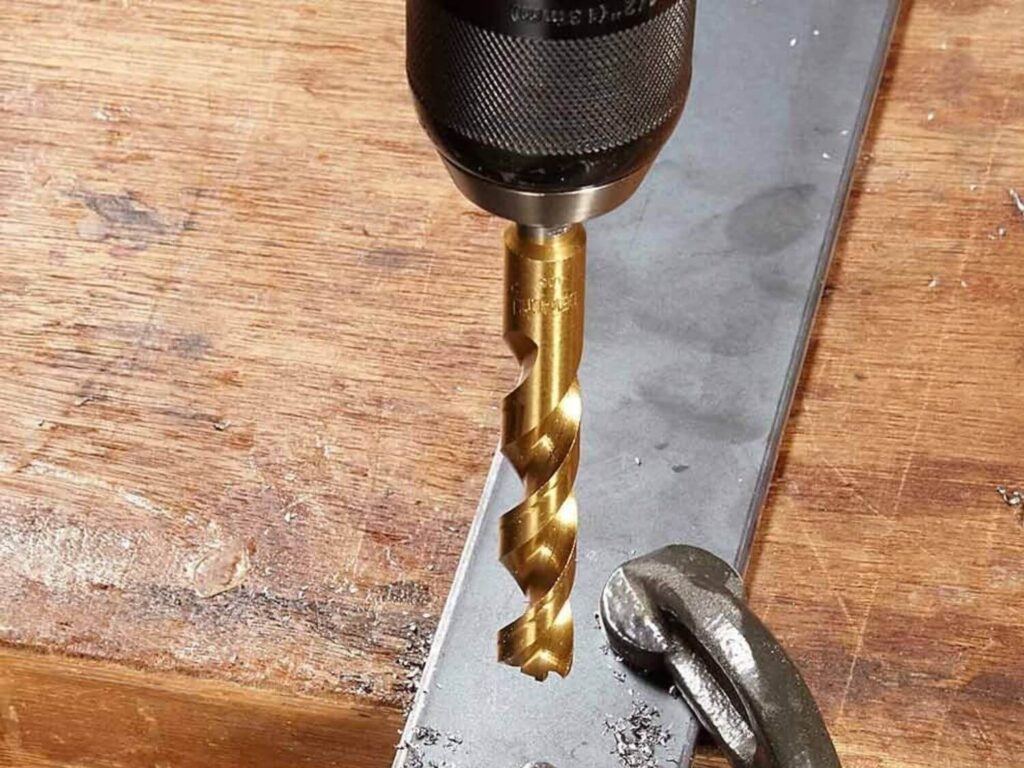
2. Drilling a Hole Pattern
One of our early projects involved a simple aluminum bracket, 4 evenly spaced holes for mounting. Seemed basic enough. But when we ran into misaligned holes and a rejected batch, I had to sit down with our machinist.
That’s when I realized: drilling isn’t just poking holes—it’s precision, coordination, and timing.
When done right, a drilled pattern is repeatable, fast, and reliable. But even small errors in programming or setup can throw off everything.
Goal
Drill a consistent and accurate hole pattern, such as a square or grid layout, that can be repeated across parts or production runs.
Hole patterns are used for fasteners, mounting plates, structural frames, and more. Getting them right means tighter assemblies, fewer tolerance issues, and smoother downstream processes.
Concepts to Know
- G0 (Rapid Move): Use this to position the tool quickly above each hole before cutting starts. It saves time between drilling moves.
- G1 (Linear Cutting Move): While not always used in drilling cycles, it’s key if you’re manually positioning into material or want to control descent speed.
- G81 (Drilling Cycle): A canned cycle that automates the drill-down, dwell, and retract. It simplifies drilling multiple holes with consistent parameters.
- Feedrate (F): Controls how fast the drill enters the material. Use a slower feed rate for hard materials, faster for softer ones, but never guess. Too fast and you’ll break the bit; too slow and you burn time.
- Spindle Speed (S): Set your RPM based on the material and drill size. As a rule, smaller drills = higher speeds.
Tips
- Plan Your Coordinates Carefully: Lay out your hole positions with clear X and Y values. Use a CAD model or draw it by hand if needed. Poor planning here = poor alignment later.
- Use G90 (Absolute Positioning): This makes your moves more predictable. Each coordinate is based off the same origin, which is especially useful in grid or fixture-based drilling.
- Drill from the Center Outward: When possible, start in the middle and work your way out. It helps balance tool wear and reduce material stress.
- Retract Safely: Always return to a safe Z-height between holes. This avoids crashing into clamps or raised surfaces.
- Use a Spot or Center Drill First: For precision patterns, a quick pre-drill helps keep your bit from wandering, especially on harder materials.
3. Pocket Milling (Rectangular Pocket)
The first time I saw a rectangular pocket being milled, I was shocked by how long it took. I assumed it would be quick—just a few cuts and done.
But as the tool made pass after pass, slowly carving down layer by layer, I realized: this wasn’t just cutting a shape. It was a dance between toolpath, depth, and machine speed.
After that job, I never underestimated pocketing again. It’s one of the most common—and time-consuming—operations in milling.
Goal
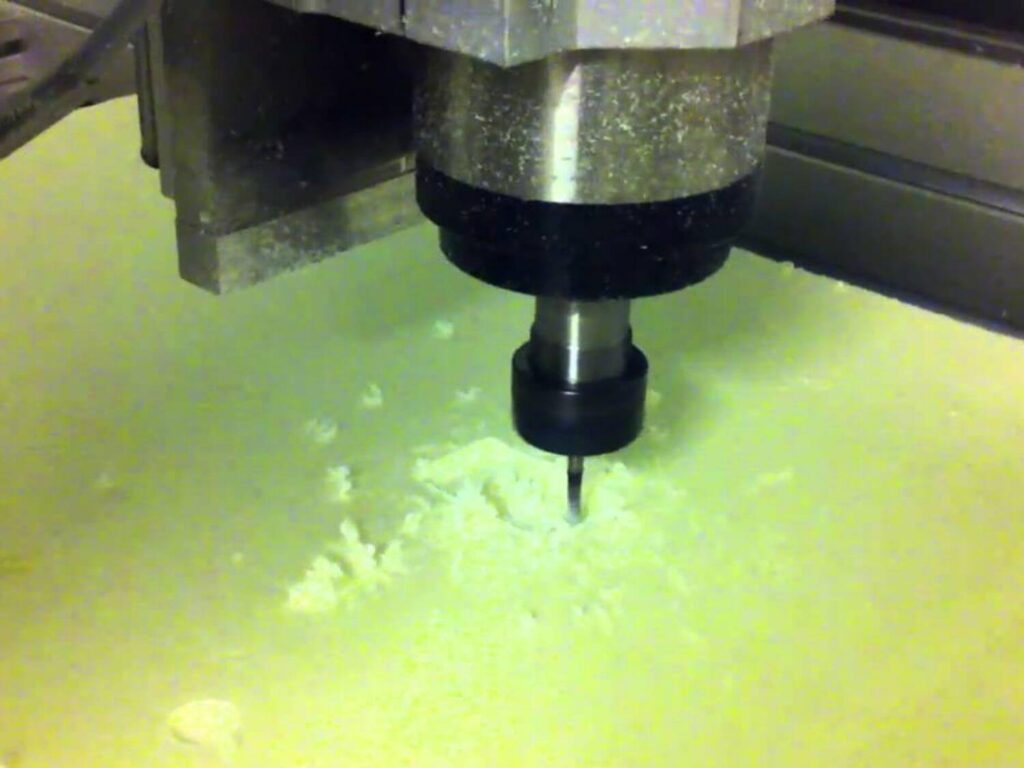
Cut a clean, flat-bottomed rectangular cavity into a material. This is used to create spaces for bolts, inserts, housings, or part clearance.
You’ll see this in base plates, brackets, custom enclosures, and electronic housings. Done well, a pocket is smooth, square, and depth-accurate to the tenth of a millimeter.
Concepts to Know
- G0 (Rapid Move): Used to position the tool above the pocket and move quickly between depth levels or passes.
- G1 (Linear Cutting Move): Tells the machine to move at a controlled feedrate. It’s how the pocket gets shaped, layer by layer.
- Step-Down (Z-Level Depth): Instead of cutting the full depth in one move, pockets are usually cut in multiple layers, each going slightly deeper. This prevents tool overload and ensures smooth finishes.
- Step-Over (Side-to-Side Distance): Controls how much the tool shifts horizontally with each pass. A typical value is 40–60% of the tool diameter for a good balance between speed and finish.
- Toolpath Pattern: Most pockets use a zig-zag or climb milling pattern. Some CAM software allows for adaptive clearing, which optimizes tool engagement automatically.
Tips
- Use a Flat End Mill: A square end mill is best for flat-bottomed pockets. Avoid ball-nose cutters unless you need radius corners.
- Ramp In, Don’t Plunge: If your machine and controller support it, use a ramp move instead of plunging straight down. It reduces stress on the tool and makes entry smoother.
- Mind Your Corners: No tool cuts sharp 90° corners; the radius will always match your cutter. If your design needs sharp corners, plan for secondary operations (like EDM) or modify the design to allow for fillets.
- Clear Chips Often: Deep pockets can trap chips. If left unattended, they cause tool wear, bad finishes, or even tool breakage. Use air blast or coolant, or program pauses for manual chip clearing.
4. Circular Pocket Milling
We once had a batch of parts come back with perfect square pockets—but every circular feature was slightly off. Just enough to cause issues during assembly. Turns out, the vendor had rushed the toolpath with a poor spiral entry and skipped the finish pass.
That mistake cost us both time and customer trust.
Since then, I’ve made it a point to partner only with machining services that know the difference. That’s why teams like MachMaster stand out. They provide high-quality CNC machining with the kind of programming precision circular pockets demand.
Goal
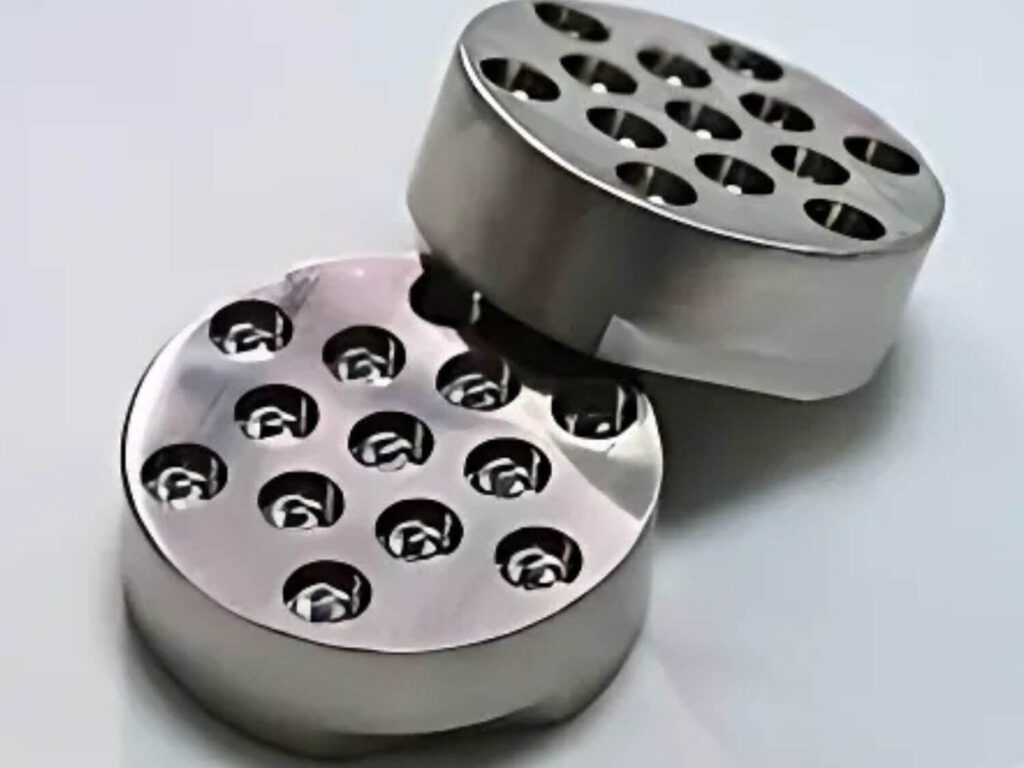
Mill a clean, accurate circular pocket into your material. You’ll use this for bearing seats, tubing interfaces, counterbores, and structural weight reliefs.
Circular pockets might seem simple, but they rely on smooth, coordinated motion, especially when tolerances are tight.
Concepts to Know
- G2 / G3 (Arc Moves): These control clockwise (
G2) and counterclockwise (G3) arcs. They allow the tool to move in a true circular path around a center point. - I and J Offsets: Define the arc’s center relative to your tool position, I for X, J for Y. These are required when programming arcs manually.
- G1 (Step-Down): Used to control vertical descent into the pocket. You can spiral downward or move in Z-levels.
- Feedrate (F): Controls how fast the tool moves. In circular paths, this affects both the surface finish and vibration levels. Go too fast, and you’ll leave ridges or overcut. Too slow, and you waste time and build heat.
- Toolpath Style: Common approaches include spiral-in, concentric loops, or adaptive clearing. MachMaster often uses spiral toolpaths for smoother cuts and better finishes, especially in aluminum and stainless steel.
Tips
- Helix Entry is Your Friend: Instead of plunging straight down, spiral in with a gradual ramp. It’s easier on your tools and reduces tool deflection.
- Always Leave a Finish Pass: Cut the rough shape first, then take a light pass to clean up the side walls. It makes a visible difference.
- Use Air or Coolant: Circular pockets trap chips in the center. If you don’t clear them, you’ll cause premature tool wear and heat buildup.
- Mind the Tool Radius: A 10 mm cutter can’t cut a 10 mm internal circle. Always design for tool clearance or plan for specialized tooling.
5. 2D Contour Profile Cut
I’ll never forget the first full part I watched being cut from a sheet of aluminum. The machine traced the shape like a knife through butter—until it hit the final corner and the part shifted. We hadn’t used tabs. The end mill caught the loose part and snapped in seconds.
It was a painful, but important lesson.
Contour cutting isn’t just about following a line. It’s about controlling movement, holding the part in place, and finishing strong.
Goal
Cut the external shape or outline of a part from raw material. This is how you turn your stock into an actual, usable part—whether it’s a bracket, a panel, or a fully machined component.
It’s usually one of the last operations in a program, and it demands accuracy and stability.
Concepts to Know
- G1 (Linear Cutting Move): Used for tracing the part’s shape at a controlled feedrate. This is the main command for profiling edges.
- G2 / G3 (Arcs): If the profile has curves or radii, these commands control the smooth motion along those arcs. Precision here affects fit and finish.
- Lead-In / Lead-Out Moves: These are small entry and exit moves programmed before and after the main cut. They prevent tool marks on the final edge and ease into the material.
- Tabs or Bridges: Small, uncut sections of material left intentionally to hold the part in place during the final contour. These are removed manually afterward.
- Tool Compensation (G41 / G42): Lets the machine offset the toolpath to the left or right of the programmed line, based on the tool diameter. This is critical for matching your CAD model’s dimensions.
Tips
- Cut Full Depth in Passes, Not All at Once: Even if your machine can handle it, it’s safer to take several step-downs. This prevents deflection and gives better edge quality.
- Use Tabs Strategically: Place them in areas that are easy to reach for finishing, and where they won’t deform thin walls. Without tabs, the part can shift or fly loose mid-cut.
- Add a Finish Pass: Leave 0.2–0.5 mm on the profile during roughing, then take a final light pass for smooth edges and tight tolerances.
- Secure Your Stock Properly: Profile cuts release the part. If it’s not clamped well, or if tabs aren’t used, it can move and cause a crash.
- Watch Entry Speeds: Enter too fast and you risk gouging. Lead-ins should be smooth and match your material’s toughness.
6. Chamfering Edges
One of our early production runs came back looking sharp—literally. The parts were dimensionally perfect, but every edge was razor-sharp. A few got flagged for being unsafe to handle, and we had to rerun post-processing.
All because we hadn’t added a simple chamfer operation.
That’s when I learned: edge finishing isn’t optional—it’s professional.
Goal
Add a small angled cut (chamfer) along the sharp corners of a part to improve safety, assembly fit, and appearance.
Chamfers don’t just make parts look better, they make them easier to handle, align, and install. You’ll often find them on bracket corners, machined enclosures, and any part that interfaces with hands or tools.
Concepts to Know
- G1 (Linear Cutting Move): Chamfers are typically machined as straight-line cuts at a shallow angle, using
G1for precise feedrate control. - Tool Orientation: Use a chamfer mill or a 90° countersink tool. The tip diameter and angle must match your desired chamfer size.
- Depth and Offset Control: Chamfer size is controlled by either the Z-depth (if cutting a top edge) or by offsetting the tool outward along the edge. A typical chamfer might be 0.5 mm × 45°.
- Lead-In and Lead-Out: Just like with profile cuts, a clean entry and exit make a visible difference in chamfer quality.
Tips
- Add Chamfers Last: Do this after all other major machining. It avoids tool interference and prevents premature edge wear.
- Avoid Over-Chamfering: Too deep and you’ll weaken the edge or affect how two parts fit together. Start small and test if needed.
- Use Consistent Feedrates: Chamfers are light cuts, so a faster feedrate is okay, but be consistent to avoid visual steps or chatter.
- Program Only Critical Edges: Not every edge needs to be chamfered. Focus on touchpoints, assembly areas, and visible surfaces to keep cycle times reasonable.
7. Thread Milling
We had a part design that called for M8 internal threads in a deep aluminum housing. At first, we planned to tap it manually after machining, but halfway through the first batch, we ran into broken taps, misaligned threads, and rework that crushed our margins.
That’s when we switched to thread milling and never looked back. It gave us better control, cleaner threads, and zero tool breakage.
Goal
Create internal or external threads using a CNC toolpath instead of a traditional tap or die. Thread milling is versatile, precise, and ideal for difficult materials or tighter tolerances.
Unlike tapping, which forces a single-size tool into the part, thread milling uses a smaller cutter to spiral out the thread profile in layers. It’s safer, more flexible, and often more cost-effective for lower-volume runs.
Concepts to Know
- G2 / G3 (Arc Moves): Used to create the circular motion needed to trace the thread’s pitch. You’ll combine this with a Z-move for the helix.
- Z-Axis Movement: The cutter spirals downward as it cuts, following a precise helical path that defines the thread’s pitch.
- Tool Diameter & Thread Pitch: The thread mill must match the thread form and pitch. One tool can often cut multiple thread sizes, which is a huge advantage over taps.
- Tool Compensation (G41 / G42): Important for adjusting the cut path based on cutter size and achieving proper thread dimensions.
- Climb Milling Preferred: Most thread milling paths use climb milling (tool moves in the same direction as material feed) to produce smoother threads and reduce deflection.
Tips
- Pre-Drill the Hole: Thread milling doesn’t start from solid stock. You’ll need a pilot hole slightly smaller than the thread’s minor diameter.
- Use Entry and Exit Moves: Spiral in gently to avoid stress on the tool. Exit with a short retract move to keep the thread clean.
- Go Shallow First: Run a test pass at half-depth before committing. This helps verify pitch and alignment without risking the full cut.
- Slow RPM, Moderate Feed: Thread milling needs stability. Don’t rush it, especially on small threads or tough materials.
- Use CAM Software for Code: Thread milling paths are complex. Generate them in software, then verify in simulation to catch any issues.
8. Engraving Text or Serial Numbers
The first time we delivered a batch of parts with laser-marked serial numbers, the client pushed back. They needed permanent, machine-cut IDs for traceability, not something that could fade, scratch, or wear off. We had to rerun the job with CNC engraving.
That mistake taught me a simple truth: when the part matters, so does the marking. Engraving isn’t just cosmetic. It’s about ownership, tracking, and quality control.
Goal
Use CNC milling to engrave readable, permanent text or numbers directly onto a part’s surface. This can include part numbers, serial codes, dates, or branding.
It’s one of the final steps in a machining workflow, but it can make the biggest difference in professionalism and compliance.
Concepts to Know
- G1 (Linear Cutting Move): Engraving paths are usually made with fine G1 commands, moving along shallow paths to trace letters and numbers.
- Z-Depth Control: Engraving typically cuts very shallow, around 0.1 to 0.3 mm, just enough to be visible but not interfere with part function.
- Font Path Generation: Most engraving isn’t programmed manually. It’s done through CAM software that converts fonts into G-code paths. These are often vector-based, single-line fonts optimized for cutters.
- Tool Selection: Use a V-bit, engraving cutter, or very small end mill (0.3–1 mm). The angle and tip radius will define how sharp or fine the engraving looks.
- Feedrate and RPM: High spindle speeds and moderate feedrates are key. Engraving is delicate, and the wrong combo can leave burn marks or chatter lines.
Tips
- Engrave Before Final Finishing: If the part gets anodized or coated later, engraving first ensures the text stays crisp and visible.
- Keep It Simple and Legible: Use block fonts and avoid small or decorative typefaces. If the text needs to be machine-readable (e.g., serials), clarity beats style.
- Position It Strategically: Avoid engraved areas that might wear down, be clamped, or get machined off later. Choose flat, visible surfaces whenever possible.
- Use Consistent Sizing: Standardize your text height and depth across parts. This makes production easier and your brand more consistent.
Conclusion
You’ve now seen 8 CNC programming examples, from facing to engraving. These are the moves behind every precise part. They’re what control quality, cost, and timelines.
Remember that quote I didn’t understand? That mistake made me learn G-code basics. Today, it saves us thousands.
Don’t wait to get ahead. Use this guide to make smarter calls, ask better questions, and manage with confidence.
Contact us today to explore how these examples can improve your next production run.
Explore Related Resources
Want to see more? We’ve gathered additional product choices to give you even more variety:
Still haven’t found what you’re looking for? Don’t hesitate to contact us. We’re available around the clock to assist you.