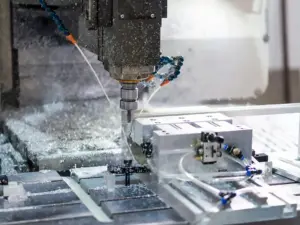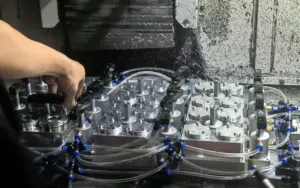

I used to think all keyboards were the same, until we brought one onto the shop floor. In our metal fabrication business, machines run fast, and time matters.
A regular keyboard didn’t last a month. Gloves made it hard to press the right keys, and dust clogged the buttons.
That’s when I learned the value of having a setup that actually fits the job. We needed something made for our kind of work, not for a desk in an office.
I’m sharing this with you because we went through the same search you’re probably on now. This is based on real use, not theory. What worked, what didn’t, and what finally solved the issue.
You’ll learn:
- What makes a keyboard “customized”
- Why it may be better for your business
- How different roles and spaces can use them
Now let’s take a closer look!
1. What Is a Customized Keyboard
Not every keyboard fits the job.
You know this if you’ve ever worked in a place where speed, safety, and accuracy matter. I found this out the hard way. Back in our metal shop, we used a basic keyboard for our machine controls. It was slow, messy, and frustrating. Too many keys. Too small. Not built for work gloves or dirty hands.
So we made a change.
That’s when I learned what a customized keyboard really is. It’s not just a tool. It’s a fix.
A customized keyboard is built to match your needs—not someone else’s. You can change how it looks, feels, and works. It’s shaped around the job, not the other way around. Whether you’re running a press machine, managing inventory, or controlling a touchscreen kiosk, you need something that works the way you do.
Components That Can Be Customized
You don’t have to change everything. Sometimes, a small change solves a big problem. Other times, you may need to start fresh. Here’s what can be adjusted:
- Key Layout: You can remove keys you don’t use. You can add bigger buttons for the most important ones. You can move them around to match your flow.
- Key Size and Shape: Some teams need large, flat keys. Others need small keys packed close. It depends on the tools you use and the way you work.
- Labels and Symbols: Keys can show words, numbers, icons, or even color codes. This makes it easier for your staff to learn and use.
- Materials and Surfaces: Do you work with oil, dust, or chemicals? The surface of your keyboard can be built to last in that space. Some are sealed. Some are soft-touch. Some can be wiped down fast.
- Connection Type: You can use USB, wireless, or direct wiring—whatever fits your setup.
- Extra Functions: You can add shortcuts, volume controls, or buttons that start a full process with one press.
- Housing Size and Shape: If space is tight, the keyboard can be made smaller or shaped to fit your machine or counter.

2. Benefits of Customized Keyboard
You don’t buy a customized keyboard to look fancy. You get one because the usual kind just doesn’t cut it anymore.
I learned that firsthand. In our metal shop, we used to work around the keyboard. It was always in the way. Wrong keys. Wrong shape. It slowed everything down. Once we switched to a custom setup, things changed fast. The job became easier. And mistakes dropped.
Here’s why it made such a difference, and why it could help you, too.
Better Fit for the Task
When your keyboard matches your tools or software, your team works faster. They don’t waste time reaching for the right key or guessing which button to press.
You cut down on errors. You reduce hand strain. You get work done with less stress.
Faster Training for New Hires
A simpler layout helps people learn their tasks quicker. You can label keys with words or symbols that match your process. New staff stop guessing and start doing.
This means fewer questions. Fewer corrections. More time spent on the actual job.
Stronger Workflow
In fast-paced work—like assembly lines, packing stations, or CNC controls—speed matters. A custom keyboard removes the clutter. You keep only what you need. Nothing more.
When the setup is clean and clear, your team stays focused. Every key has a job. Every press gets a result.
Safer and Cleaner
In some places, dust, grease, or spills are a problem. You can choose materials that stand up to those conditions. You can even ask for sealed surfaces that are easy to wipe down.
This keeps your space safer. It also makes maintenance easier and faster.
A Smart Long-Term Choice
It’s not just about one person using it. A custom setup can serve your whole team for the long haul. And if your needs change, the design can change with you.
At MachMaster, we’ve helped businesses design keyboards that fit their work—not just the tech. We know what it’s like to manage a fast-moving team. That’s why we build setups that get out of the way and let people focus on their job.

3. Levels of Keyboard Customization
Not every job needs a full redesign. Sometimes, just one small change makes a big difference.
When we first looked into custom keyboards at our shop, we didn’t start with a full rebuild. We began small—removing keys we didn’t use. Then we added labels that made more sense for our crew. Over time, we built a setup that worked better than anything off the shelf.
That’s what I want to show you now. Customization can be light or deep. You choose how far to go.
Basic Customization
This is a good starting point. You’re not changing how the keyboard works, just how it looks or feels.
What you can adjust:
- Add color-coded keys
- Replace keycaps with symbols or larger text
- Change the labels to match your tools
- Choose materials that hold up better to your workspace
This helps with faster training and fewer mix-ups. It’s also cost-friendly and quick to set up.
Mid-Level Customization
Here, you start changing the layout or behavior of the keys.
What you can adjust:
- Move or remove keys you don’t use
- Add shortcut keys for frequent tasks
- Set up macros (press one key to do multiple steps)
- Resize the keyboard housing to fit your station
This level is useful if your work has patterns—same tasks, same steps, same tools. It clears out what’s not needed and brings your core work to the front.
Full Customization
This is a build from the ground up. You design the shape, size, layout, and features around your exact needs.
What you can adjust:
- Every key and where it goes
- The material for each part
- Touchscreens or dials added in
- Sealed designs for high-dust or wash-down spaces
- Direct integration with machines or software
This takes more time, but it gives you full control. If you’re working in a complex setup—or if standard tools keep breaking or slowing things down—this is where you find real solutions.

4. Common Use Cases Across Industries
Customized keyboards aren’t just for tech companies. They’re used by real people in busy, hands-on jobs. If your team runs machines, handles fast tasks, or works in special spaces, a standard keyboard might not keep up.
Here are some of the ways different industries put custom keyboards to work.
Manufacturing and Industrial Shops
In factories and metal shops like ours, workers wear gloves and move fast. A basic keyboard with tiny keys just doesn’t work.
What helps:
- Large, spaced-out keys
- Simple layouts with only what’s needed
- Sealed designs to block dust, grease, or oil
This setup reduces mistakes and keeps things running—even in rough environments.
Retail and Point of Sale (POS)
Cashiers don’t need 100 keys. They need a few buttons that do the job fast.
What helps:
- Keys with product names or item codes
- Color-coded buttons for common actions
- Slim designs that fit tight counters
A clean, simple layout speeds up service and lowers training time.
Warehousing and Logistics
In shipping centers or storage sites, workers scan, sort, and pack. Timing matters, and systems need to move fast.
What helps:
- Built-in scanners with shortcut keys
- Keypads mounted on carts or stations
- Dust-proof materials for dirty areas
These setups help teams work without slowing down to search for controls.
Medical and Lab Settings
Cleanliness is critical. So is speed. In hospitals or labs, a wrong key press can waste time—or worse.
What helps:
- Flat, sealed keyboards that are easy to wipe down
- Bright backlighting for low-light rooms
- Simple layouts with only the most used keys
This keeps tools clean, clear, and easy to use—no matter the setting.
Public Kiosks and Self-Service Machines
Think about ATMs, ticket machines, or hotel check-ins. The people using them don’t need instructions—they just need things to work.
What helps:
- Durable keys that handle heavy use
- Clear, easy-to-read buttons
- Water-resistant surfaces for outdoor use
These are made to last—and built so anyone can figure them out quickly.

5. How to Get or Build a Customized Keyboard
You don’t have to be an engineer to get the right setup.
Whether you’re looking for a small change or a full custom build, the process can be simple—as long as you know what you need. I’ll walk you through how to get started, based on what I learned in our own shop.
We didn’t start by picking parts. We started by asking questions.
Step#1 Know Your Use Case
Before anything else, take a look at how the keyboard will be used.
Ask yourself:
- Who will use it?
- What kind of work will it support?
- What’s wrong with the current setup?
Think about the flow. Think about where delays or mistakes happen. That’s where a better layout can help.
Step#2 Choose Your Level of Customization
You don’t need to build from scratch if a few simple changes will fix the problem.
Decide if you need:
- Just new keycaps or labels
- A custom layout or added keys
- A full redesign with special materials or shapes
This helps you stay on budget and avoid overcomplicating the process.
Step#3 Find a Trusted Supplier or Partner
You’ll need a team that knows how to build for your environment. Look for someone who has worked with your kind of business before.
At MachMaster, we’ve helped clients across industries—from factory lines to field stations—get setups that actually work for their teams.
Whether you need help choosing features or building something from the ground up, working with the right partner makes the process easier.
Step#4 Test and Review
Once you get your first unit, test it in the real workspace.
Watch how your team uses it. Ask what works and what doesn’t. You might need to adjust layout, key pressure, or labels.
That’s normal. Good setups come from small changes over time.
Step#5 Roll It Out
Once your team is comfortable and the keyboard fits the flow, it’s time to put it into full use. You can scale from one unit to many—or use it as a model for other roles or departments.
Building the right keyboard isn’t about adding features. It’s about removing friction. You’re not buying a gadget. You’re improving how your team works.
6. Trends and Innovations in Customized Keyboards
Work is changing. The tools we use are changing too.
When I first looked into custom keyboards, the options were simple. Just bigger keys. Maybe a few layout tweaks. But now? There’s more flexibility, more control, and better access—even for small shops like ours.
Here’s what’s shifting.
Modular and Swappable Parts
Instead of replacing a whole keyboard, you can now swap out just the parts that fail—or parts you want to update.
This helps with maintenance. It also means you can reconfigure your setup without starting from zero.
Smaller Runs, Lower Barriers
In the past, you had to order large batches to justify custom work. That’s changing.
Now, more suppliers offer smaller minimum orders. This helps small businesses test new setups without taking a big risk.
Integration With Software and Machines
Today’s keyboards don’t just type. They can send commands to machines or open programs with a single key press.
You can build in:
- Barcode scanner triggers
- Custom macros for software
- Direct links to production controls
This brings speed and control right to your fingertips—no more extra steps.
Flat and Low-Profile Designs
In tight spaces, size matters. Many businesses now ask for slimmer profiles or flat builds that don’t take up much room.
These are easier to mount, clean, or move. Some even work on mobile carts or touchscreen stations.
7. Factors to Consider Before Choosing a Customized Keyboard
A custom keyboard can solve real problems. But to get the right fit, you need to be clear about your needs before you start.
I’ve learned this through trial and error. In our shop, our first custom layout didn’t work as well as we hoped. Why? Because we didn’t ask the right questions upfront.
Here’s what you should think about before you build or buy.
User Role and Work Style
Think about the actual user, not just the job title.
Some may wear gloves or work in a fast-paced environment. Others might need larger buttons or clearer labels. If your team struggles with a keyboard now, their feedback is your best starting point.
Task Flow and Repetition
Each keyboard should match the task it supports.
Some users may control machines. Others might run software commands or repeat short processes all day. The more you understand these routines, the better your keyboard will perform.
Connection and Integration Requirements
Make sure the keyboard fits into your setup.
You might need USB, wireless, or direct wiring. It may need to connect with machines, tablets, or PCs. Some setups call for extra ports or data lines. Knowing this early avoids delays later.
Quantity and Future Needs
Planning beyond the first unit helps avoid problems down the line.
Even if you start with one, it helps to know whether others will need the same setup later. Some layouts can be shared across roles or stations, which saves time and cost in the long run.
Conclusion
We started with a messy keyboard in a noisy shop. Now, we use one that fits the way we work.
In this guide, you saw what a customized keyboard is, where it helps, how it’s built, and why it works.
If your team struggles with speed or clarity, now is the time to act. A small change in layout could remove a big barrier in your workflow.
Have you thought about what your team truly needs in a keyboard?
Let MachMaster help you build it together. Contact us today.